



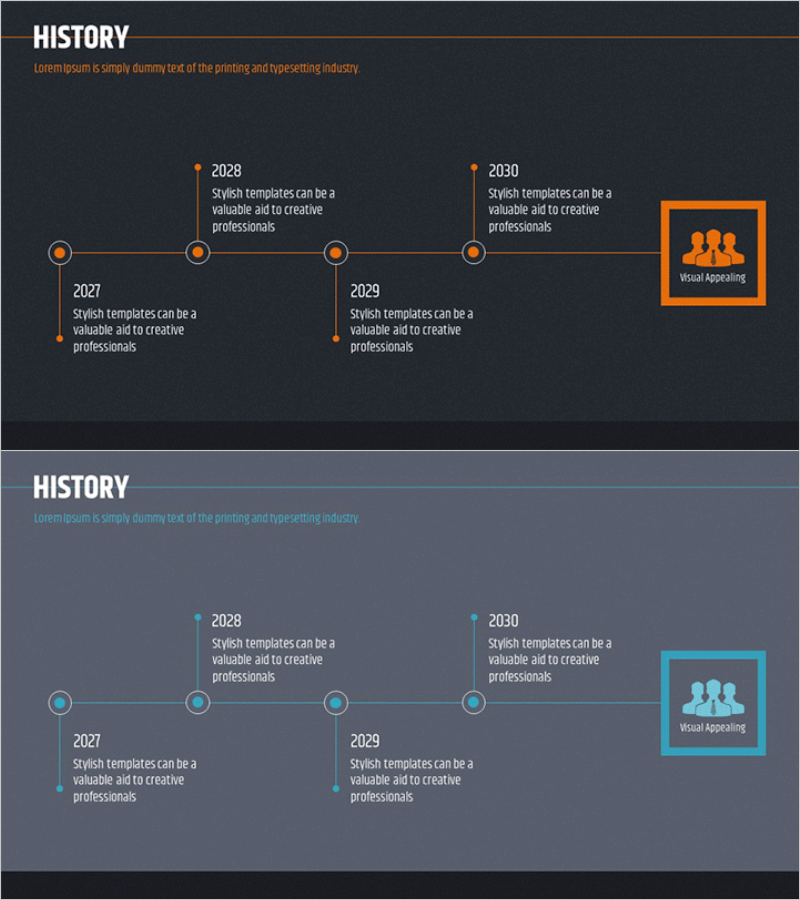
Business History Diagram – Visualize Company Milestones
RM0100004_5
- Last Update 01/25/2025
- File Size 3.4MB
- # of Slides 2
- File Format PPTX
- Slide Ratio 16:9
- Color
Keywords
About the Product
A timeline connection diagram PowerPoint slide that visualizes your company's key milestones in chronological order. This 2-slide set includes both orange and cyan color versions in 16:9 widescreen PPTX format. Each slide features 4 circular nodes connected horizontally with straight lines, creating a linear timeline structure perfect for presenting company history, business evolution, and project progression. The clean node-and-line design allows easy text editing for years and descriptions, making it ideal for corporate presentations, investor pitches, and organizational storytelling.
Usage Points
-
Main Usage
Present your company's founding, major achievements, and growth trajectory in a clear, chronological visual format. The timeline structure helps audiences quickly grasp your organization's development and establish credibility through historical context.
-
How to Use
Place this diagram early in your company introduction presentation to build organizational context and trust. Edit the year labels and description text for each node with your actual company milestones, then select the color version that matches your presentation theme.
-
Recommended For
Company overview presentations, investor pitch decks, corporate profile briefings, employee onboarding sessions, and business partnership proposals. Particularly effective for startups showcasing growth stages or established companies highlighting key achievements and turning points.
-
Slide Structure
2-slide set: orange version + cyan version. Each slide displays 4 circular nodes arranged horizontally and connected by straight lines in a linear timeline. Text input areas below each node accommodate year labels and milestone descriptions. A visual appeal icon box is positioned on the right side of each slide.
Related Products
-
Business History Connection Diagram – Company Growth Story
#Company Introduction #Diagram #History
-
Fountain Pen History Diagram – Emphasizing Corporate Identity
#Company Introduction #Product/Service Introduction #Diagram
-
Business History Diagram – Visualizing Organizational Growth
#Company Introduction #Diagram #History
-
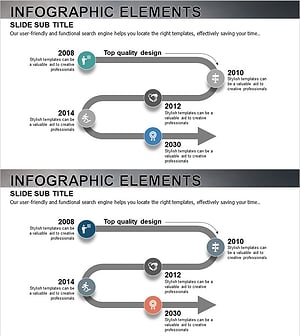
History Road Diagram – A Cluster Diagram Ideal for Company Introduction
#Company Introduction #Diagram #History