



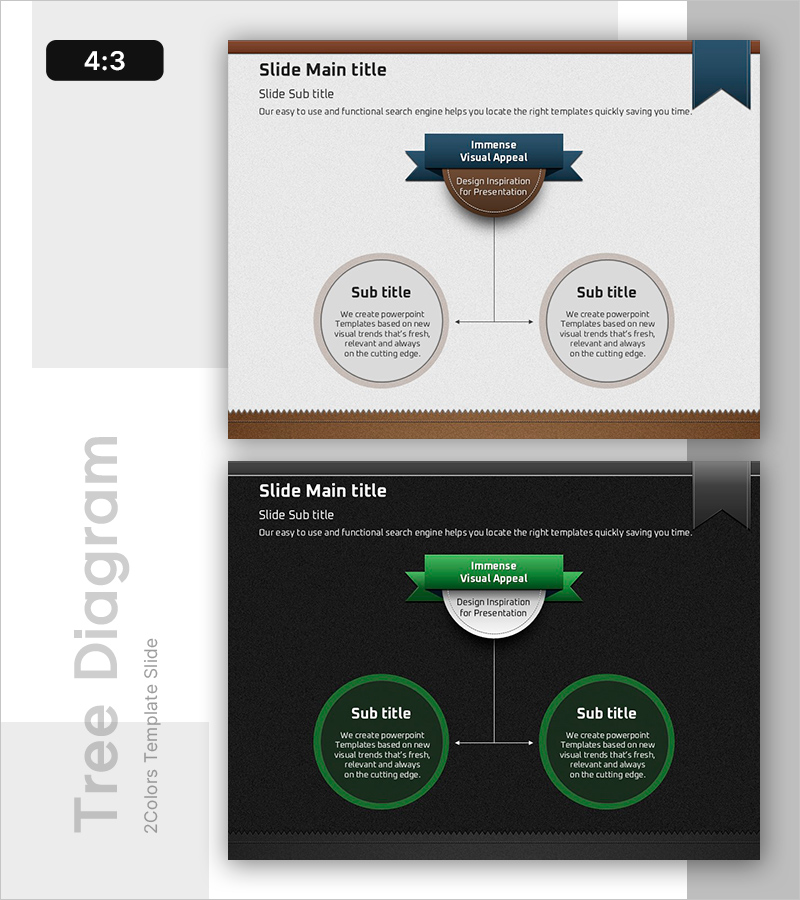
Key Theme and Two Critical Components – Technical Service Diagram
RB0800013_11
- Last Update 03/20/2025
- File Size 7.7MB
- # of Slides 2
- File Format PPTX
- Slide Ratio 4:3
- Color
Keywords
About the Product
A hierarchical tree diagram PowerPoint slide that branches from a central theme into two critical components. The top banner-style central node connects vertically to two circular nodes on the left and right, making it ideal for visualizing service operations, technical architecture, organizational structures, and decision-making processes. The 2-slide set includes brown and black background versions, with editable text areas in each circular node for immediate presentation use. Available in 4:3 aspect ratio PPTX format, compatible with all PowerPoint versions.
Usage Points
-
Main Usage
Visualizes a hierarchical structure where a central theme branches into two key components. Effectively communicates service operations, technical architecture, organizational hierarchies, and decision-making processes with clear top-down relationships.
-
How to Use
Enter the main theme in the top banner node and add the two critical components in the left and right circular nodes. All text within nodes is fully editable, and color changes can be made easily. Ready to use in technical presentations, service introductions, and organizational structure explanations.
-
Recommended For
Recommended for technology teams, service planning departments, organizational restructuring presentations, system architecture briefings, and industries such as healthcare, finance, and IT. Ideal for executive reports, client proposals, and internal training materials where hierarchical relationships need clear visual communication.
-
Slide Structure
2-slide set. Each slide features a top banner-style central node (text input area) connected by a vertical line to two circular nodes (left and right, each with text input area). Slide 1 uses a brown background; Slide 2 uses a black background for color variation options.
Related Products
-
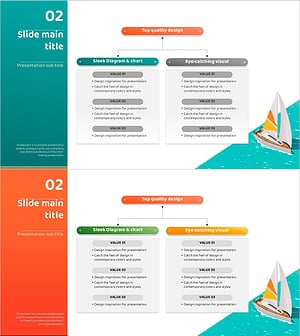
Camping Isometric Service Implementation Plan – Innovation and Growth
#Technical Approach #Diagram #Text Box
-
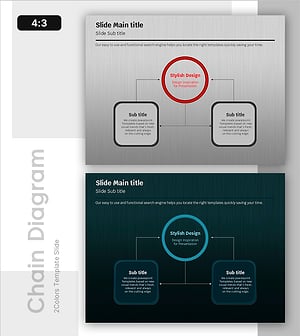
Mapping Key Connections Diagram Slide
#Technical Approach #Diagram #Service Operation Plan
-
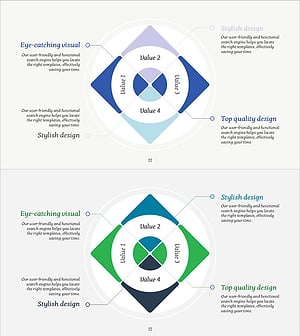
Connection Diffusion Composite Diagram for Service Operations
#Technical Approach #Diagram #Service Operation Plan
-
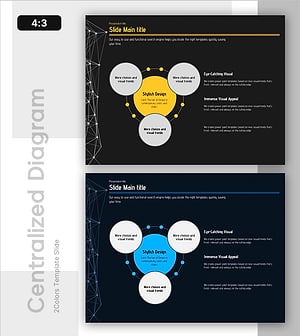
Unified Structure with Central Focus
#Technical Approach #Diagram #Service Operation Plan