



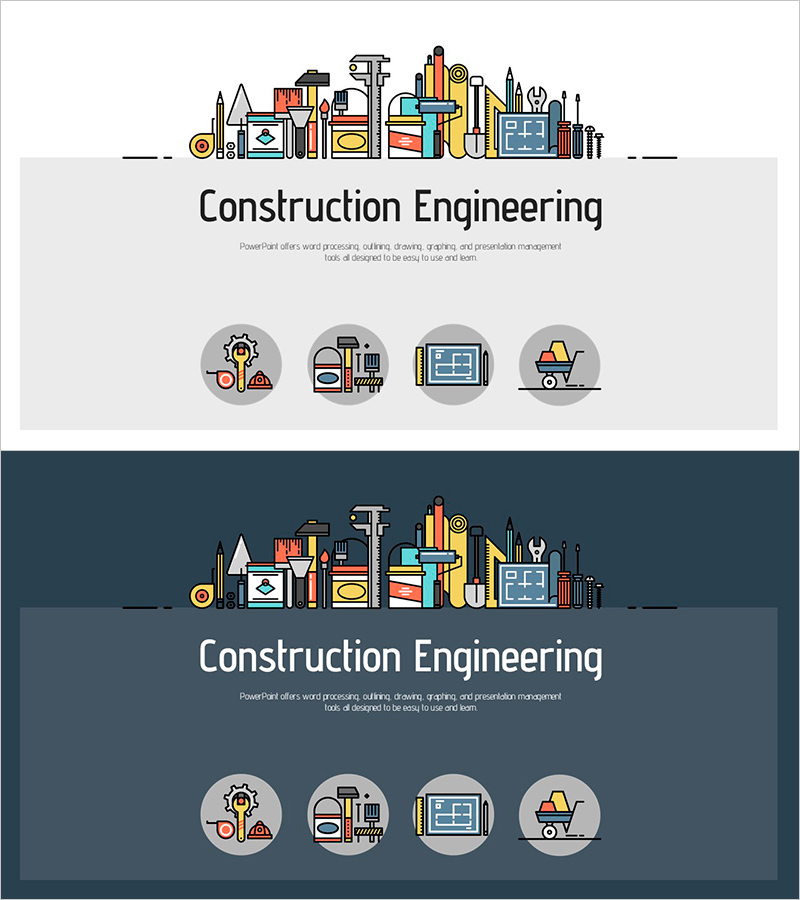
Architectural Engineering Template Cover – Creative Design
RJ0900013
- Last Update 08/19/2025
- File Size 0.5MB
- # of Slides 2
- File Format PPTX
- Slide Ratio 16:9
- Color
Keywords
About the Product
A professional cover slide for construction engineering and building project presentations in PowerPoint format. This template features two color variations: a light gray background and a dark navy background, both adorned with colorful illustrated icons of construction tools, buildings, and machinery at the top. The center section provides dedicated areas for title and subtitle input, while the bottom displays four circular icons representing key construction elements: planning, construction, blueprints, and equipment. Ideal for architecture firms, construction project proposals, engineering seminars, and industry presentations requiring immediate deployment.
Usage Points
-
Main Usage
Serves as the opening slide for construction engineering and building project presentations, establishing a professional first impression. The construction tool and building illustrations convey expertise and credibility in the architecture field while providing clear space for company name, project title, and presenter information.
-
How to Use
Use as the cover slide to introduce your construction or engineering presentation. The light version creates an approachable, modern atmosphere while the dark navy version conveys professionalism and trust. Customize by entering your project name or presentation topic in the title area and company name or presenter details in the subtitle section.
-
Recommended For
Architects, civil engineers, construction company professionals, project managers, real estate developers, architecture students and instructors, construction consultants, and engineering firms presenting projects, conducting client meetings, or delivering industry seminars.
-
Slide Structure
Two-slide set featuring one light gray background cover and one dark navy background cover. Each slide follows a three-tier structure: construction icon illustrations at the top, title and subtitle input areas in the center, and four circular function icons at the bottom, creating clear information hierarchy.
Related Products
-
Manuscript Template Cover – Creative Start
#Slide Type #Cover
-
Ebook Mockup Template Cover – Designed to Showcase Education
#Slide Type #Cover
-
Colored Pencil Note Template Cover – Creative Design
#Slide Type #Cover
-
Photograph Shooting Main Cover – The First Step to Professional Photography
#Slide Type #Cover