



Watercolor Illustration Template – Creative Presentation
RJ0600049_3
- Last Update 07/04/2025
- File Size 3.8MB
- # of Slides 2
- File Format PPTX
- Slide Ratio 16:9
- Color
Keywords
About the Product
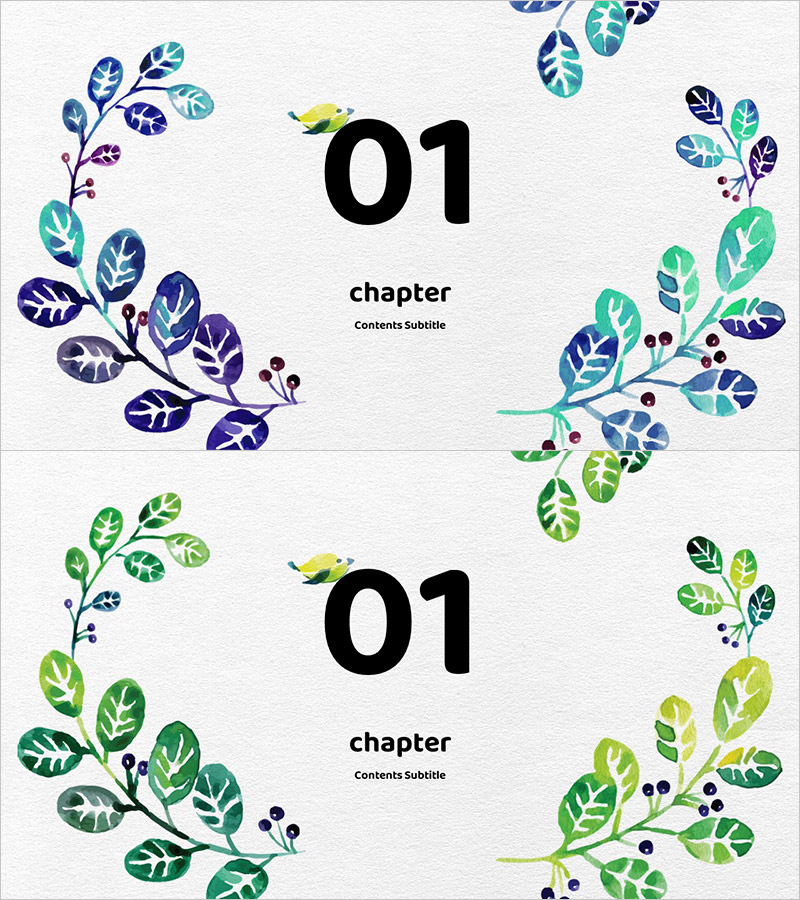
Elevate your presentation with these watercolor botanical chapter divider slides. This 2-slide PowerPoint set features symmetrical leaf illustrations and a yellow bird motif to mark section breaks. The first slide showcases deep blue, purple, and teal leaf tones, while the second features bright green and lime variations for visual contrast. Each slide includes a centered large '01' number field and 'chapter' text area, making section transitions seamless and visually engaging. Delivered in 16:9 widescreen PPTX format for universal compatibility across all devices and presentation platforms.
Usage Points
-
Main Usage
These slides serve as visual chapter dividers to mark the beginning of new presentation sections. The soft watercolor botanical aesthetic captures audience attention while smoothly transitioning to the next content topic. Perfect for creating a creative, emotionally resonant presentation atmosphere.
-
How to Use
Insert this slide at the start of each new section in your presentation. Edit the centered '01' number and 'chapter' text field to reflect your section number and title. Add your section subtitle in the 'Contents Subtitle' area. Choose between the two color-tone variations to match your presentation flow and branding.
-
Recommended For
Ideal for educational seminars, creative pitch presentations, portfolio showcases, art and design talks, product launch events, and presentations targeting younger audiences. Works exceptionally well for any presentation requiring an emotional, artistic, or contemporary tone.
-
Slide Structure
Each slide features symmetrical watercolor botanical illustrations positioned in the top and bottom margins, a large centered number input field (01), 'chapter' text below it, and a 'Contents Subtitle' input area at the bottom. Three clearly separated text fields enable easy customization while maintaining visual balance.
Related Products
-
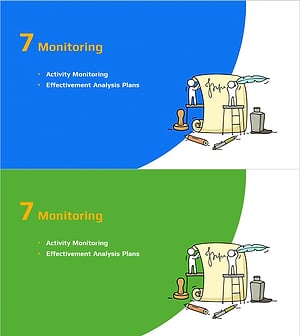
Idea Marketing Plan Template Section Slide
#Slide Type #Section Cover
-
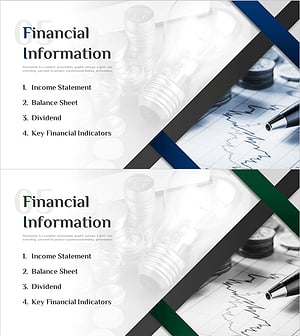
Modern Line IR Template Section Slide – Financial Information Presentation
#Slide Type #Section Cover
-

Watch Product Introduction and Service PPT Section Slide
#Slide Type #Section Cover
-

Diagonal Theme IR Template Section Slide – Emphasizing Business Performance
#Slide Type #Section Cover